Getting Started
PingMan watches your voice channels and pings the right people the moment someone joins. This page walks you through everything - adding PingMan to your server, creating your first subscription, and managing it over time.
Prerequisites
Before using PingMan, make sure:
- PingMan is in your server. Head to the Introduction page for the invite link.
- You have the Manage Server permission. All
/setup-channelactions require it by default.
What is a subscription?
A subscription links a voice channel to a set of notification rules: who joining that channel counts as a trigger, and who gets pinged when that happens. You can have one subscription per voice channel, and you manage them all through a single command: /setup-channel.
Creating a subscription
Run /setup-channel in any text channel and select the voice channel you want to monitor. If no subscription exists for it yet, the setup wizard opens.
The wizard walks you through 5 steps. Nothing is saved until you confirm at the final step.
Info
The wizard times out after 10 minutes of inactivity. If that happens, just run /setup-channel again.
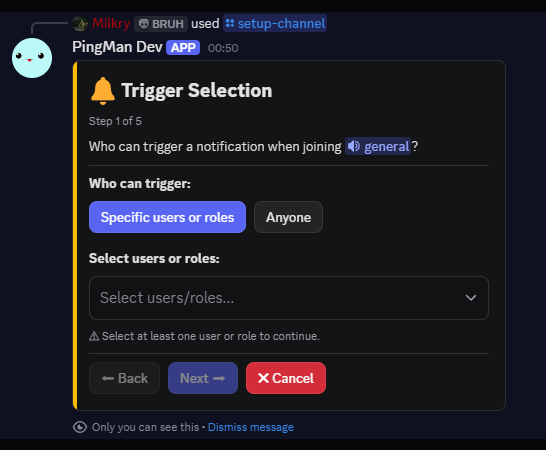
Step 1 - Trigger Selection
Who joining the voice channel should fire a notification?
| Option | Behaviour |
|---|---|
| Anyone | Any member joining the channel triggers a notification. |
| Specific users or roles | Only the users or roles you pick from the dropdown will trigger one. |
Warning
Managed roles (bot integration roles) and bot accounts are filtered out automatically - they can't be selected as triggers.
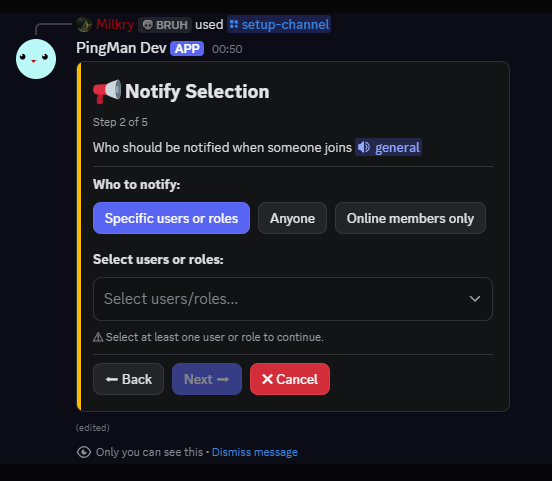
Step 2 - Notify Selection
Who gets pinged when a notification fires?
| Option | Behaviour |
|---|---|
| Anyone | Sends @everyone. |
| Online members only | Sends @here (online members only). You can optionally add specific users or roles on top. |
| Specific users or roles | Only the users or roles you pick are mentioned. |
Step 3 - Redirect & Cooldown
Where should notifications go, and how often?
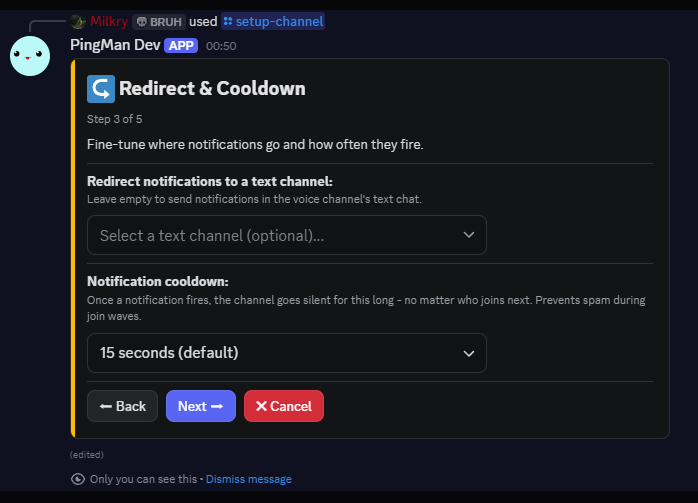
Redirect channel (optional)
By default, notifications are posted in the voice channel's linked text chat. If you'd rather send them somewhere specific - like a dedicated #vc-pings channel - pick one from the dropdown.
Warning
PingMan needs Send Messages, Embed Links, and Mention Everyone permissions in the redirect channel. If it doesn't have them, the selection won't save.
Cooldown
After a notification fires, the channel goes quiet for a set period - no matter who joins next. This prevents spam during join waves. You can pick any duration from 15 seconds (default) up to 1 minute.
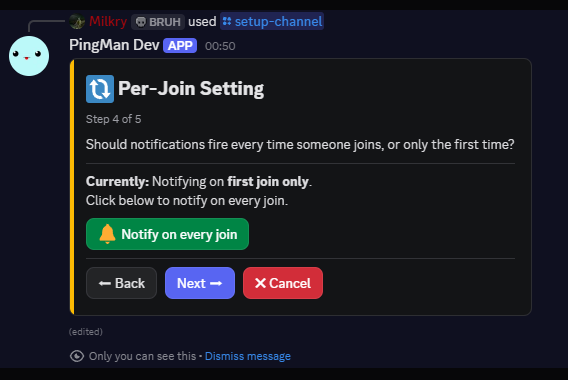
Step 4 - Per-Join Setting
Should notifications fire on every join, or just the first?
| Setting | Behaviour |
|---|---|
| First join only | One notification fires when the first triggering member joins. Further joins are ignored until the channel empties of triggering members. |
| Every join | A notification fires each time a triggering member joins, subject to the cooldown. |
First join only
Four people join a voice channel one by one. PingMan fires a notification when the first person joins. The second, third, and fourth joining don't trigger anything. Once the channel empties and someone joins again, the cycle resets.
Every join
A notification fires each time a new person joins the voice channel, so it's always clear when each member arrives - subject to the cooldown between pings.
Step 5 - Review & Confirm
A summary of your full configuration is shown before anything is saved. Look it over, then hit Confirm to go live.
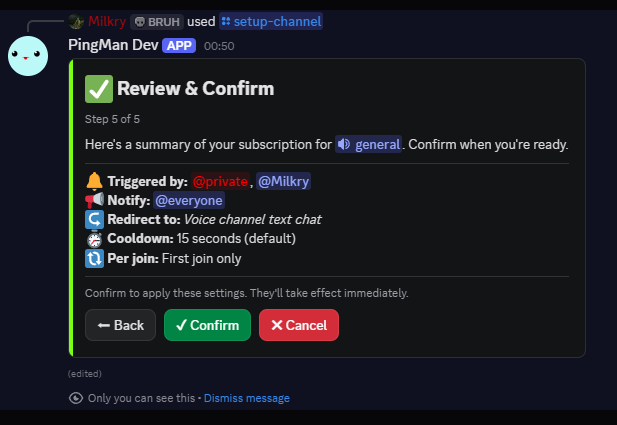
Success
Once confirmed, you'll see a Subscription saved successfully message and the subscription is active immediately.
Viewing a subscription
Run /setup-channel on a voice channel that already has a subscription. Instead of the wizard, you'll see the View screen - a snapshot of the current configuration with quick-action buttons.
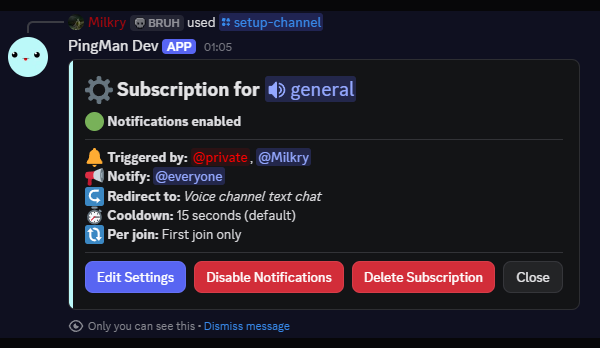
The View screen shows:
- Whether notifications are currently enabled or disabled
- The configured trigger and notify rules
- The redirect channel (if set), cooldown, and per-join setting
If something looks broken - a deleted role, a stale user, or a redirect channel PingMan no longer has access to - a warning is shown here so you know what needs fixing.
Editing a subscription
From the View screen, click Edit Settings. The wizard opens with all your current settings pre-filled, so you only need to change what's relevant. Confirm at Step 5 to apply.
Disabling and enabling notifications
From the View screen, click Disable Notifications to pause all pings for that channel. Your configuration is fully preserved - nothing is deleted or reset.
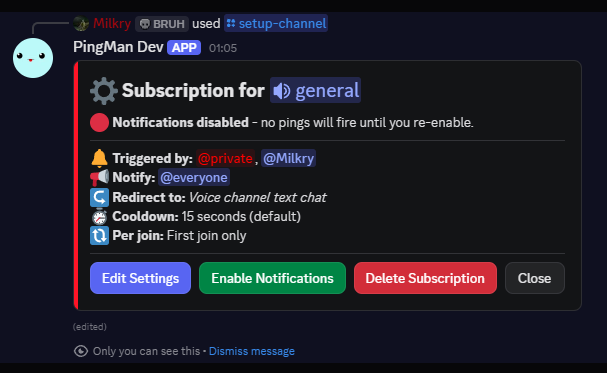
When you're ready to turn it back on, click Enable Notifications. It takes effect immediately.
Info
Disabling requires a confirmation step to prevent accidental presses. Re-enabling does not.
Deleting a subscription
From the View screen, click Delete Subscription and confirm the prompt to permanently remove it.
Danger
Deletion cannot be undone. If you just want to pause notifications temporarily, use Disable Notifications instead.